How to Translate Your Entire Website Online: What You Need to Know
Learn how to translate your entire website in a few easy steps using both human and AI translation.


In this guide, we're going to look into:
Translating your website is a non-negotiable if you want to expand your reach and cater to a global audience. However, with so many translation tools promising quick and convenient translations, finding the right option can feel overwhelming.
In this article, we explore the various options available for translating your website, from human translation to machine translation. We also provide step-by-step instructions for translating entire websites and individual web pages with popular tools like Google Translate and Weglot.
Let’s dive into the world of website translation and discover how you can make your online presence truly global.
Looking for a website translation tool to get started with straight away? Try Weglot's 14-day free trial for a hands-off approach to a multilingual website.
Basic Options for Translating a Website
When it comes to translating your website, there are two main options available to you: human translation and AI translation.
Human Translation
Human translation is when professional human translators translate web pages from one language to another. Many agencies provide human translation services in exchange for a fee.
Pros
- Considers context, structure, and language nuances.
- Typically proofreads and performs quality assurance.
- Ensures accurate terminology, a consistent tone, and cultural relevance to your target markets.
Cons
- Long turnaround; can take days to months to complete, depending on the volume and nature of your website.
- May be costly for some businesses, particularly for those looking for rarer language pairings (e.g. Icelandic to Japanese)
- You may have to upload and display the translations live on your site manually.
AI Translation
As suggested in the name, generative AI translation uses artificial intelligence to translate content from one language to another. Modern AI translation engines, like those from Google, Microsoft, and DeepL, use neural networks and large language models (LLMs) to deliver increasingly accurate translations.
While AI translation provides speed and efficiency, the quality can vary depending on the language pair and context. For example, the most popular LLMs today have been primarily trained on English texts, making it less reliable for translating into non-English language pairs. That's why combining AI translation with human review and editing ensures the best results.
Pros
- Instantaneous and accurate translation quality.
- Fast setup.
- Broad support for languages.
Cons
- Quality depends on language pair and context.
- Most popular LLMs today have been primarily trained on English texts, making it less reliable for translating into non-English language pairs. - Often locked behind AI credits.
- Can be costly depending on the volume of your website.
Choosing the Right AI Translation Method for Your Website
When selecting an AI translation approach, the ease of implementation should be a primary consideration. While basic AI translation tools like Google Translate offer quick results, they lack the comprehensive features needed for professional website translation.
The most efficient AI translation method combines multiple AI engines with seamless website integration. This approach eliminates the technical complexity of managing translations manually while ensuring quality through advanced AI models. Look for solutions that offer automatic content detection, instant translation deployment, and built-in editing capabilities.
For businesses seeking the most straightforward implementation, AI-powered translation platforms that integrate directly with your existing website infrastructure provide the optimal balance of simplicity and functionality. These solutions typically require minimal technical knowledge and can have your multilingual website operational within minutes rather than weeks.
How to Translate a Website With Google Translate
You’re probably most familiar with Google Translate as an option for translating the whole of your website. It lets you translate your entire website into different languages in a few simple steps:

- Launch Google Chrome and go to the Google Translate website i.e. translate.google.com.
- Type the entire URL of your website in the text box on the left.
- Select the new language you wish to translate your website into.
- Click the Translate button.
You should be able to view the translated version of your website from the native language (e.g., English) into a foreign language, and the Translate toolbar on the top lets you quickly change the translation language using the dropdown menu.
Pros
- No coding needed.
- Easy to set up for testing.
- Users can instantly view your website in their preferred language.
Cons
- No control over translation quality; terms can be incorrectly mistranslated (such as your brand name).
- Not set up for international SEO, so visitors can't find you when searching.
- No way to maintain or manage translations.
Recommended reading: How to Add Google Translate to a WordPress Website

However, some words and phrases may remain untranslated because Google Translate ignores text in images. Additionally, Google Translate's website translations can be inaccurate and lack support, as it doesn’t offer human translation.
For a better solution, consider using services like Weglot, which provides both AI and human translations along with expert human support.
Introducing Weglot
Weglot is a complete multilingual solution that lets you automatically translate your entire website into over 110 languages. It uses a combination of AI translation engines from Google, Microsoft, and DeepL—depending on the language pair—to deliver the most accurate results.

The Weglot translation solution combines AI translation with human editing capabilities. First, it translates your entire website content using AI translation, then lets you manually edit them using its in-context editor or translations list – depending on your preference.
Alternatively, you can also use the AI Language Model to instantly generate translations that sound on-brand. It learns from your custom instructions, Glossary rules, and manual translation history to give you translations that are context-aware, brand-aware, and fully customizable.
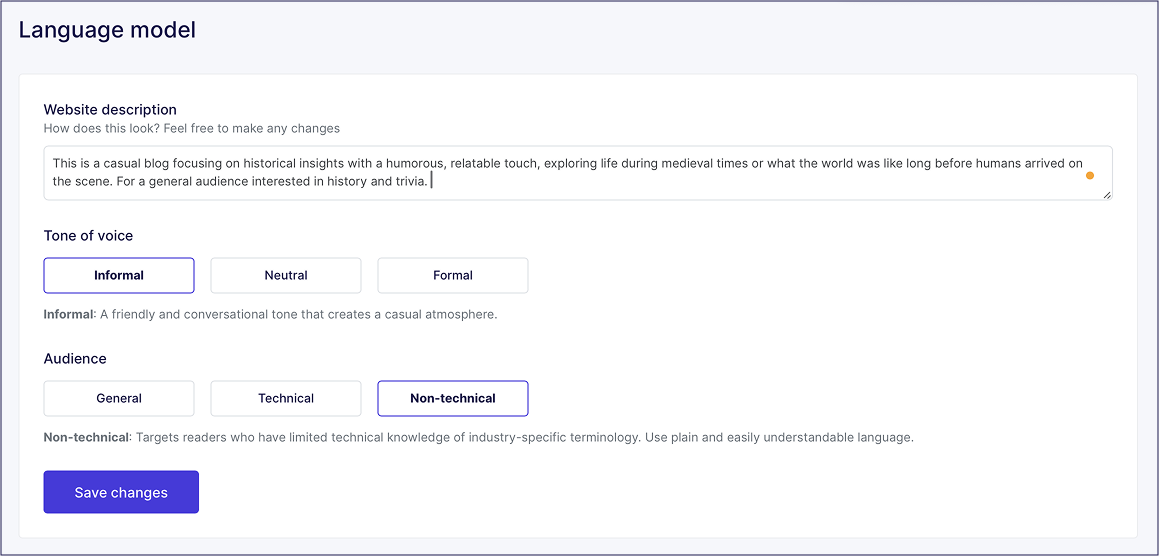
In summary, Weglot provides:
- AI-powered and human translation
- AI Language Model and AI improvements to existing translations
- Access to professional website translators
- Translate website content in minutes
- Simple plugin to integrate and easy to use
- Manage entire web page translations in one place
- Compatible with different website technologies
- Multilingual SEO optimized
Streamlined AI Translation Setup in Minutes
Weglot's approach to AI translation prioritizes simplicity without compromising on quality. The platform automatically detects your website's content and applies the most appropriate AI translation engine for each language pair, eliminating the guesswork from the translation process.
Unlike manual AI translation methods that require technical implementation, Weglot's automated system handles everything from content discovery to translation deployment. The AI engines work continuously in the background, translating new content as it's added to your website, ensuring your multilingual presence stays current without ongoing maintenance.
This streamlined approach means business owners can launch a fully functional multilingual website in under 10 minutes, with AI translation quality that rivals manual implementations but with significantly less complexity and technical overhead.
How to Translate Your Entire Website Online Using the Weglot Translation Solution
As the most popular CMS out there, we’ll show you how to translate your entire WordPress website using Weglot.
In fact, Weglot was originally built just for WordPress, and over 60,000 sites have been translated with Weglot.
Now, Weglot is CMS agnostic and works with most platforms and technologies. Whether you’ve used a different CMS or built your site without the help of a CMS you can check out all our integrations. All our integrations have been created so literally, anyone can add multilingual capabilities to their website – there’s no need for the help of a developer.
.webp)
Step #1: Install the Weglot Plugin
Search for the Weglot Translate plugin and install and activate it to your WordPress website.

If you haven’t done so already, create a new Weglot account. You’ll need to enter your email address and create a password. Once this is done, you’ll receive a confirmation email to verify your account and get your API key.
Step #2: Configure the Plugin Settings
Go to the Weglot menu item from the WordPress dashboard sidebar menu.

- Enter the API key you received in the API Key box.
- Choose the Original Language i.e. the language (for example, English) your website content is published in using the dropdown menu.
- Set the Destination Languages i.e. the languages you want to translate your website’s content into (for example, Portuguese).
From the same screen, you can configure additional options for language switcher widget style and location based on your preferences.
%20smaller%20size.avif)
Additionally, you can also choose to exclude certain pages from being translated or choose to enable auto-detection of visitors’ language based on their web browser settings.

Click the Save button to continue. When you preview your website’s front end, you’ll see the language switcher widget that lets visitors translate your entire website at the click of a button.
Step #3: Create and Manage Your Translations
Weglot automatically generates AI translations for your entire website. However, you can edit and manage the language translations using Weglot’s built-in editing interfaces.
The Visual Editor offers a live preview of your WordPress website. This allows you to modify your translations as you view them on the web page while keeping in mind the context and design.
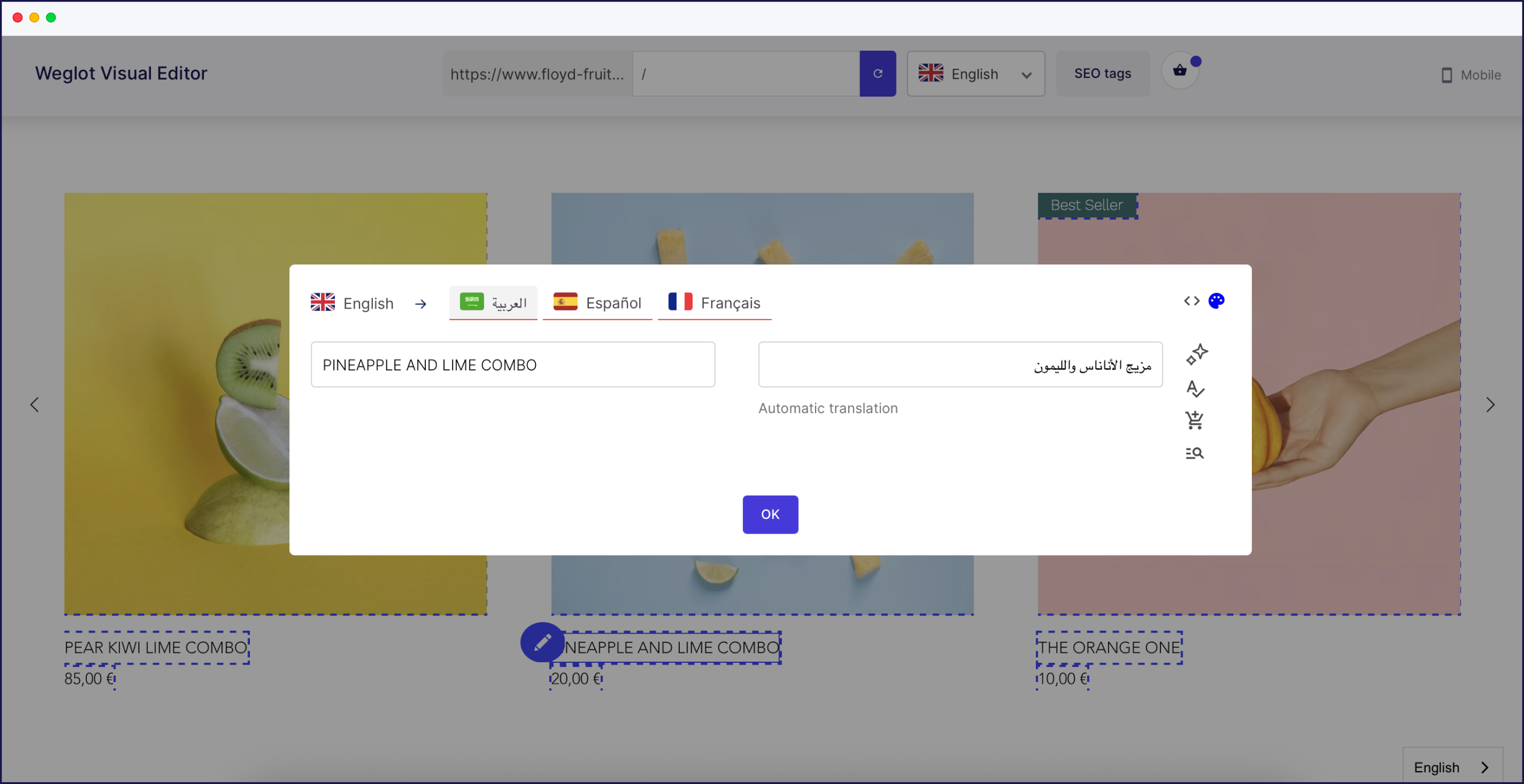
You can edit translations by clicking on the blue pencil icon. This will open a pop-up window that lets you edit the translation.
The Translations List editor provides a side-by-side view of your original content along with AI-generated translations for the chosen language. Any changes made to the translations are automatically saved.
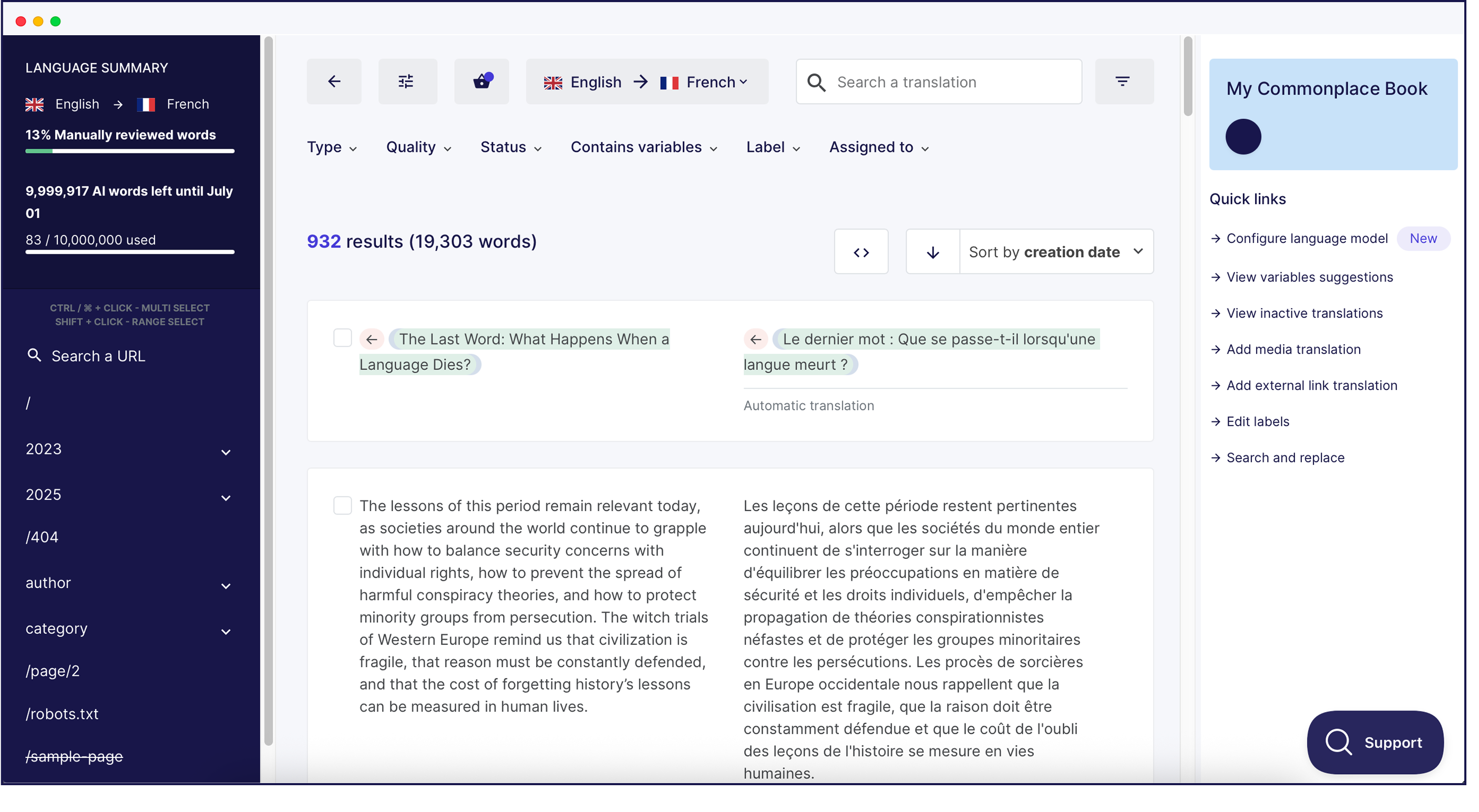
The search bar on the top allows you to quickly find translations and content you would like to modify. You can also click on the Translation options button to set up rules for your translations.
It’s also worth mentioning that Weglot helps you connect with professional translation agencies directly from within the web app as an add-on service. Simply select the pages you want to have professionally translated to get started.
How to Translate a Website Using Web Browser Extensions
If you don’t own or run a site, as a website visitor, navigating a website in a foreign language can be a cumbersome experience. Fortunately, most modern web browsers come with built-in translation features that are useful if you want to translate individual web pages as opposed to translating your whole website.
In this section, we'll guide you through the simple steps to translate a website directly within popular browsers like Google Chrome, Firefox, Safari, and Microsoft Edge.
How To Translate a Web Page with Google Chrome
Google Chrome is one of the most popular web browsers and comes with a built-in translation feature that can automatically or manually translate a webpage. Here's how you can use this feature on both your desktop browser and Android device:
Automatic Translation
- Open the Website: Navigate to the foreign-language website that you want to translate.
- Translation Prompt: A small pop-up should appear at the top, asking if you'd like to translate the page.
- Select 'Translate': Click the 'Translate' button on the pop-up, and Chrome will automatically translate the webpage to your browser's default language.
Manual Translation
- Open the Website: Navigate to the foreign-language website.
- Right-click: Right-click anywhere on the page.
- Select 'Translate': Choose the 'Translate to [Your Language]' option from the context menu.
- Confirm Translation: Chrome will then translate the web page to your chosen language.
Settings Adjustment
- Customize Languages: If you'd like to change the target language, click on the three vertical dots next to the translated language at the top and select a different language from the dropdown list.
- Always Translate: If you regularly visit websites in a specific language, you can select 'Always translate' to have Chrome automatically translate websites in that language in the future.
How To Translate a Web Page with Firefox
Firefox doesn't have a built-in translation feature like Google Chrome, but it offers robust support for extensions that can easily handle website translation. One popular extension for this purpose is To Google Translate. Here's a step-by-step guide on how to use it:
Installing the Extension
- Open Firefox: Launch your Firefox browser.
- Go to Add-ons: Click on the menu button (three horizontal lines) in the top-right corner and select "Add-ons."
- Search for 'To Google Translate': In the search bar, type "To Google Translate" and hit Enter.
- Install the Extension: Click the "Add to Firefox" button next to the extension. Confirm the installation if prompted.
Translating a Website
- Navigate to Website: Open the website you wish to translate.
- Highlight Text: Highlight the text you want to translate. For the entire web page, you might need to scroll down to ensure all text is loaded and then highlight.
- Right-click for Options: Right-click on the highlighted text.
- Select 'Translate': From the context menu, choose "Translate selection" to translate the highlighted text.
Using Extension Icon
- Click on Extension Icon: After installing the extension, you'll notice a Google Translate icon in your toolbar.
- Translate Page: Click this icon when on a foreign-language web page. A new tab will open with the translated content.
How To Translate a Web Page with Safari
For Mac users, Safari offers a simple and intuitive way to translate web pages, although the feature is currently limited to a few languages and available only on macOS Big Sur or later. Here's how you can translate a website in Safari using either your Mac or iPhone:
Enabling Translation
- Open Safari: Launch your Safari browser.
- Navigate to Website: Visit the foreign-language website you wish to translate.
- Click on Translate Icon: On the address bar, you'll find a translate icon that looks like two 'A's next to each other. Click on it.
- Select Language: Choose the language you want to translate the web page into.
Manual Translation
- Right-click: If automatic translation doesn't kick in or if you want to translate specific text, you can highlight the text, right-click, and then select "Translate."
Review Translation
- Translation Toolbar: Once translated, a toolbar will appear at the top, showing the original and translated languages.
- Switch Back: If you wish to revert back to the original language, you can click "View Original" in the translation toolbar.
Settings Adjustment
Preferences: If you want to customize translation settings, you can go to Safari > Preferences > Websites > Page Translation to enable or disable automatic translation for specific websites or languages.
How To Translate a Web Page with Microsoft Edge
Microsoft Edge, based on the Chromium engine, comes with a built-in translation feature that's both convenient and straightforward to use. This guide will walk you through the process of translating a website in Edge:
Automatic Translation
- Open Microsoft Edge: Launch your Edge browser.
- Navigate to Website: Visit the website you want to translate.
- Translation Prompt: A pop-up will appear at the top of the page asking if you'd like to translate it.
- Select 'Yes': Click on 'Yes' to translate the page into your browser's default language.
Manual Translation
- Right-Click: On the web page, right-click anywhere.
- Choose 'Translate': Select the "Translate" option from the context menu.
- Confirm Translation: The page will then be translated to your browser's default language.
Changing the Target Language
- Translation Bar: After translation, a bar will appear at the top showing the original and translated languages.
- Change Language: Click on the language dropdown to select a different target language if needed.
Translation Settings
- Customize Settings: You can customize translation preferences by clicking on the three horizontal dots in the translation bar and selecting "Translation options."
- Automatic Translation: From the settings, you can choose to always translate web pages from a specific language.
How to Translate a Website Using Android and iOS Mobile Devices
Navigating through a web page written in a foreign language can be a daunting task. Luckily, popular mobile browsers like Google Chrome and Safari offer built-in translation features that can convert the text into a language of your choice.
Again, this is a solution to consider if you'd prefer to translate each page of your site individually.
Here's a detailed step-by-step guide on how to utilize these features on both Android and iOS devices.
Using Google Chrome to Translate Web Pages
- Open Chrome: Tap the Chrome app on your device.
- Visit the Web Page: Navigate to a web page written in a foreign language.
- Translation Notification: A notification should pop up at the top of the screen, suggesting translation.
- Choose Language: Tap on the language into which you want the page translated.
- Change Default Language (if required):
a. Tap on "Settings."
b. Navigate to "More languages" and select your preferred language. - Always Translate:
a. Return to "Settings."
b. Choose "Always translate pages in [selected language]."
Translating Web Pages in Safari
- Launch Safari: Open the Safari browser on your device.
- Navigate to Web Page: Visit the web page that is in a language different from your preferred one.
- Translation Icon: In the address bar, you'll observe an icon resembling two 'A's or a translate icon, depending on your iOS version. Tap it.
- Choose Translation Language: Select the language into which you wish to have the web page translated.
- Read the Translated Page: The website should now display the content in the chosen language, making it comprehensible
Sometimes, a web page may not trigger the translation notification in Chrome, or the translation icon might be absent in Safari. This could be due to various reasons like website settings or browser compatibility issues. Always ensure that your browser is updated to the latest version to access all the available features and ensure smooth functionality.
What's the Simplest AI Translation Solution for Your Website?
When evaluating AI translation options for your website, the simplest approach combines automation, quality, and ease of use. While basic translation tools require manual implementation and ongoing management, advanced AI translation platforms handle the entire process seamlessly.
The most efficient AI solution automatically integrates with your existing website, uses multiple AI engines for optimal translation quality, and provides easy editing tools for customization. This approach eliminates technical barriers while ensuring professional results that scale with your business needs.
For businesses seeking immediate results with minimal effort, AI-powered website translation platforms like Weglot provide the optimal combination of simplicity and functionality, enabling you to launch a multilingual website in minutes rather than months.
Ready to Go Multilingual? What to Do Next
If you want to easily and seamlessly translate your entire website, a basic browser extension isn't going to cut it.
That's why (in most cases), we recommend relying on a user-friendly translation tool like Weglot, which lets you quickly and easily translate your entire website into your preferred languages.
Tools like Weglot make the process easier and more effective, offering both AI translation and human editing capabilities to ensure the nuanced accuracy that resonates with your target audience.
If you're seeking to cultivate a global presence and create a more inclusive, user-friendly experience, it’s time to put website translation on your strategic roadmap.
Choose a Weglot plan to get started today!

Time to open your website to the world
Get started for free and have a multilingual website up and running in minutes.

Common questions
How many translated words do I need?

Translated words indicate the number of words you can translate within your Weglot plan. To know the number of translated words you need, you must first know how many words you have on your website and how many languages you wish to translate your website into. You can learn the total number of words on your website using our Word Count Tool and easily get a plan suggestion based on your needs.
You can also calculate this manually. For example, if you want to translate 20 pages into 2 languages (in addition to your original language), your total number of translated words would equal to; the average words per page x 20 x 2. Assuming you have an average of 500 words per page, your total number of translated words will be 20,000.
You can watch our video to learn more about how translated word count is calculated.
What if I go over my limit?
You'll be notified by email if you exceed your usage limit. If you have enabled the auto-upgrade feature, we’ll automatically upgrade your account to the next plan based on your usage so you won’t experience any service interruptions. Otherwise, the translations will be discontinued until you upgrade your plan or delete the extra translations to stay within your plan’s translated word count.
Do I pay full price when I upgrade my plan?
No, since you already paid for your current plan, you will only pay the difference for the upgraded plan, and only for the remainder of your billing period.
How do I add a language switcher to my WordPress website with Weglot?
Once you install Weglot, a language switcher will automatically be added to your website (found on the lower right by default). You can modify this to fit your website design by going to your WordPress backend > Weglot > Language button design (Optional). Here, you can choose whether to use a drop-down menu, toggle flags to display within your switcher, how to display the names of your languages, and to change the overall style. Alternatively, you can use Weglot's language switcher visual editor if you prefer to preview your changes as you go. To do this, go to your Weglot Dashboard > Settings (on the left-hand side) > Language Switcher.
Should I use AI or manual translation for my WordPress site?
Use AI translation with manual editing for most business sites, as this approach balances speed and quality. Weglot's AI Language Model provides AI translation that learns from your brand's glossary, manual edits, and custom tone instructions for context-aware results.
Reserve fully manual translation for legal, medical, or compliance content requiring certified accuracy. Many businesses use AI translation for blog posts and secondary pages while investing in manual editing for homepage, product pages, and key marketing content.
How do I make my multilingual website translations more advanced?
To make your multilingual website translations more advanced, follow these best practices:
- Implement best practices for multi-language websites:
- Ensure your website structure supports multiple languages, using subdirectories or subdomains for each language.
- Maintain consistent and culturally appropriate translations across all languages.
- Regularly update your content to keep translations accurate and relevant.
- Use Weglot's AI Language Model to instantly generate AI translations that sound like your brand.
Read more: Best practices for translating your website
- Add a language switcher:
- Make it easy for users to switch languages by adding a visible and user-friendly language switcher to your site.
- Place the language switcher in a prominent location, such as the header or footer.
- Use clear language labels and flags to enhance user experience.
Learn more: How to add a WordPress language switcher to your site
- Localize your website:
- Start by identifying the key pages and content that need translation.
- Use a reliable translation plugin like Weglot to manage and automate the translation process.
- Customize and refine translations to ensure they meet the cultural and contextual expectations of your target audience.
Follow this guide: How to Conduct Website Localization: Step by Step Guide
How do I make my multilingual website SEO-friendly?
Once installed, Weglot automatically applies multilingual SEO best practices as set by Google. It instantly adds compliant hreflang tags to the translated versions of your site, translates metadata, and hosts your URLs under your desired structure (subdomains or subdirectories). Your site will then be properly indexed by search engines, allowing your target audience to find you in your translated languages.
Can AI translate a whole website?
The easiest way is to use a plug-and-play AI website translation tool that works on top of your existing site, without requiring a rebuild.
Tools like Weglot automatically detect your site’s content, translate it using AI, and display multilingual versions instantly, without changing your CMS, theme, or codebase.
You then get full editing control, access to a Custom AI Language Model that learns from your brand guidelines to deliver on-brand translations and technical SEO setup.
Is there a way to translate entire web pages with AI?
Yes, and Weglot makes it a "one-click" process. Unlike copy-paste tools, Weglot automatically detects all the content on your website. Once connected to your site, it scans every corner of your pages, including navigation menus, footers, pop-ups, and even dynamic content from other plugins, and translates them instantly using a layer of AI translation from DeepL, Google, Microsoft, OpenAI and Gemini.
Weglot also includes:
- Continuous Syncing: When you add a new paragraph or a new product page in your original language, Weglot detects it and translates the entire new page automatically in real-time.
- Visual Context: You can use the Visual Editor to view your fully translated pages exactly as they appear live, ensuring the AI-generated text fits perfectly within your design.
- Custom AI Language Model: Create your language model in a couple of steps, feed it your brand guidelines and rely on even more accurate translations that sound true to your brand.
Why translate your entire website?
Here's why translating your website should be on your strategic roadmap:
- Reach a Global Audience: English might be a widely spoken language, but it's not the mother tongue for everyone. Catering to a multilingual audience can widen your customer base significantly.
- Improve User Experience
- Gain Competitive Advantage
- Build Trust and Credibility
- SEO Benefits: Search engines will index the various translated versions of your site, making it more visible to people searching in other languages.
- Cultural Relevance: Language is deeply tied to culture, and translation can serve as a stepping stone to website localization, which takes into account cultural norms, idioms, and customs.
- Legal Compliance: In some regions, it's legally required to provide information in the native languages of the users. Failing to do so can result in penalties or restrict you from operating in those areas.
What should I look for in a translation technology provider?
Translation Quality and Accuracy:
- Language Pair Coverage: Ensure they offer translations for all required languages.
- AI Translation Quality: Assess the accuracy and fluency of AI translation outputs.
- Human Post-Editing: Check if human post-editing services are available.
Technology and Features:
- Integration: Can it integrate with your CMS, CRM, or e-commerce platforms?
- Real-Time Translation: Is real-time translation available for dynamic content?
- Translation Memory (TM): Does it include TM for consistency and cost savings?
- Terminology Management: Are tools available for managing terminology?
- AI and Machine Learning: Does it utilize AI for improved translation quality?
User Experience:
- Ease of Use: Is the platform user-friendly?
- Customization: Can you customize the interface and workflow?
- Support and Training: Are robust support and training resources provided?
Scalability and Flexibility:
- Volume Handling: Can it handle large volumes efficiently?
- Scalability: Does the platform scale with your business needs?
- Flexible Pricing: Are there flexible pricing models?
Security and Confidentiality:
- Data Protection: Does it follow strict data security protocols and comply with regulations (e.g., GDPR)?
- Confidentiality: What are the policies on handling sensitive information?
Cost and ROI:
- Transparent Pricing: Is the pricing clear and transparent?
- Cost-Effectiveness: Are the costs justified by the features and benefits?
- ROI: What is the potential return on investment?
Customer Feedback and Reputation:
- Reviews and Testimonials: What do current and past clients say?
- Case Studies: Are there examples of successful implementations?
- Industry Recognition: Has the provider received any awards or recognition?
Innovation and Updates:
- Continuous Improvement: Does the provider regularly update their technology?
- Research and Development: Is there a commitment to R&D?
What's the best AI tool to translate a website?
Weglot is widely considered the best choice because it provides a tech-free, instant way to translate your brand website.
- Hybrid AI translation: It uses a "best-of-breed" approach, choosing the most accurate AI engine (DeepL, Google, or Microsoft) based on your specific language pair. You then get full editing control over your AI translations.
- Technical SEO: A great website tool must do more than translate words. Weglot automatically handles the complex technical requirements that search engines demand, such as:
- Hreflang tags: Telling Google which language version to show to which user.
- Language Subdirectories or subdomains: Weglot automatically displays your translated content under language subdomains or subdirectories with zero technical setup from your side.
- Metadata translation: Ensuring your SEO titles and descriptions are also translated for local searchers.
- Custom AI learning: You can activate a Custom AI Language Model that learns from your manual edits and brand glossary, ensuring your translations sound true to your brand.
Can I use an AI website translation tool if my website updates often?
That’s exactly where AI tools work well.
When you add or update content, Weglot automatically translates new pages and text. You don’t need to re-upload files or re-run translation jobs, a big pain point for many brands.

Ready to get started?
The best way to understand the power of Weglot is to see it for
yourself. Get your website multilingual and live in minutes.
